Key facts:
- Launch Date: October 2025
- Platform: macOS (Apple Silicon M-series)
- Purpose: AI-powered browser for browsing, research, writing, and automation
- AI Features: ChatGPT sidebar, Agent Mode, dynamic memory, prompt management, syncing, sharing
Ever feel like everyone suddenly has that one smart tool that makes their work faster, smoother, and borderline magical, except you? Yeah, welcome to the ChatGPT Atlas era. If you’ve been wondering what it is, why everyone keeps raving about it, and most importantly, how the hell you actually download it, you’re in the right place.
Think of this as your no-nonsense, non-tech-bro guide. By the end of this quick read, you’ll know exactly what ChatGPT Atlas is, where to find it, how to download it safely, and how to get it up and running without wanting to throw your laptop out the window.
Let’s get you set up.
What is ChatGPT Atlas?
ChatGPT Atlas is basically OpenAI’s take on a smarter, AI-native web browser. It officially launched in October 2025, and the whole idea behind it was simple: instead of using a browser plus ChatGPT in another tab, why not create one place where both work together seamlessly?
So, Atlas looks and feels like a normal Chromium-based browser, but the difference is that ChatGPT is built into every corner of it. It understands what page you’re on, and can act on your behalf. It taps into “browser memories” (if you allow), so it can remember what you’ve browsed or researched before.
Atlas also features an Agent Mode (available for Plus, Pro, and Business users), where ChatGPT can perform tasks such as research, booking, and filling out forms, all within the browser.
Right now, it’s available for macOS users (Free, Plus, Pro, Go), with Windows, iOS, and Android versions coming soon.
See why you should switch from Chrome to Atlas
Why download ChatGPT Atlas?
Sometimes you try a new tool and instantly wonder why you struggled without it. That’s pretty much the ChatGPT Atlas experience.
Here’s why it’s worth using:
- Smart browser memory: Atlas can remember what you’re researching or reading within your browsing session, and bring that context back when you chat. No more “remind me what we were doing” moments.
- Agent-like actions: This is big. Agent mode in Atlas can actually take actions for you - open tabs, click links, fill forms, do research, add things to a cart, etc.
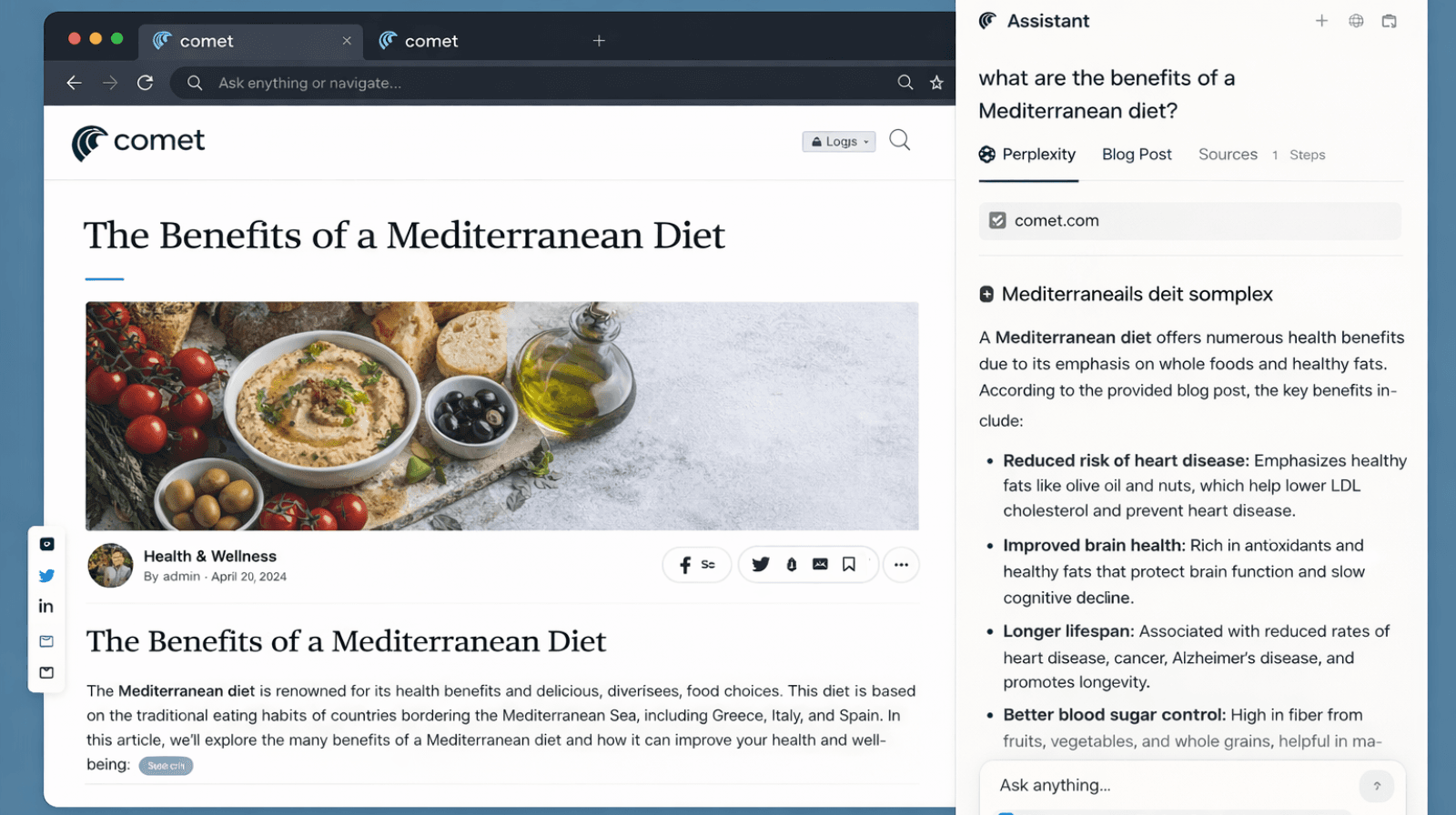
- On-page AI sidebar: You get a built-in Ask ChatGPT panel on every webpage. Highlight text, get explanations, summaries, translations, or quick notes right there without switching tabs.
- Inline writing support: Whether you’re typing an email, filling a form, or writing a message, Atlas can rewrite, tidy up, or adjust the tone directly in the text box you’re using.
- AI-powered search: Search feels less like digging and more like getting a ready-to-use answer. It combines search results, context, and summaries so you don’t have to open 20 tabs.
- Privacy controls: You choose what Atlas can access. Browser memory can be switched off, cleared, or limited to certain sites, and you can browse privately anytime.
- Natural-language commands: You can control your browser by talking normally, things like “close the shopping tabs,” “find me my travel research again,” or “organize these articles.”
ChatGPT Atlas saves time, reduces chaos, and makes the internet feel more seamless. Once you get used to it, going back feels weird.
Before you download ChatGPT Atlas
Before you hit download, just make sure your Mac is actually ready for Atlas. These quick checks save you from the “why isn’t this installing??” spiral later. Nothing complicated, just making sure your setup is compatible.
Here’s what you need before downloading:
- A compatible Mac: Atlas currently works on Apple Silicon (M-series) Macs.
- An updated macOS: Ideally Monterey or newer, so the browser runs smoothly.
- A ChatGPT account: Any plan is fine - Free, Plus, Pro, Go, or Business.
- Stable internet: Since most features depend on real-time AI use.
- Enough storage: Keep at least 500 MB free for the installer; 1–2 GB is better for smooth performance later.
- Basic system permissions: macOS will ask for a few approvals during setup.
- Awareness of privacy settings: You’ll choose these after installation, but it’s helpful to know that Atlas may ask about browser memory.
Once these are checked off, downloading Atlas becomes a total breeze. You’ll be up and running in minutes.
How to download ChatGPT Atlas
Now that you have your prerequisites ready, downloading the actual ChatGPT Atlas is very easy. Here’s the step-by-step guide to walk you through it.
1. Go to the official site
Open any browser and head to chatgpt.com/atlas - this is where you can download the official Atlas installer.
2. Download the Atlas installer
Click on the “Download for macOS” button. This will download a .dmg file to your Mac’s Downloads folder.
3. Open the .dmg file
Double-click the downloaded file. It will mount a virtual “disk” and open a window showing the Atlas app icon and an Applications folder.
4. Install by dragging
Drag the Atlas app icon into the Applications folder. This installs the browser on your Mac. After dragging, eject the mounted disk image.
5. Launch Atlas
Open Atlas from your Applications folder or use Spotlight (Cmd + Space → type “Atlas”). macOS might warn that the app is downloaded from the internet; just click “Open.”
6. Sign in to your ChatGPT account
Log in using your existing ChatGPT/OpenAI account. This ties the browser to your profile and settings.
7. (Optional) Import browser data
If you want, Atlas can import bookmarks, passwords, and history from another browser like Safari or Chrome. You can skip this step if you prefer starting fresh.
8. Grant required permissions
During setup, you may be asked to give Atlas permission for Keychain, notifications, or other macOS-level access. Approve what you feel comfortable with for full functionality.
9. Choose privacy settings
Atlas will ask if you want to enable browser memory. This allows it to remember what you’re working on, so it can help you better later. You can decide now, and you can modify this later.
10. Try out the built-in AI sidebar
Open any page, highlight text, and ask ChatGPT to summarize, explain, or analyze it right there in the sidebar.
11. Enable Agent Mode (if your plan allows)
If you’re on Plus, Pro, or Business, you’ll be able to use Atlas’s Agent features to let it perform actions like opening tabs, following links, or filling out forms.
12. (Optional) Set Atlas as your default browser
If you like, you can make Atlas your default browser via System Settings → Desktop & Dock → Default web browser.
That’s it - once installed, you’re ready to use Atlas like a pro.
Want better browsing? Discover the must-have Atlas extensions in our guide
5 cool things you can do with ChatGPT Atlas
Now that you’ve got everything set up and you’ve downloaded ChatGPT Atlas, here’s the fun part: actually using it. Atlas is designed to make navigating, organising, and executing prompts insanely smooth. Here are some genuinely cool things you can do:
1. Create prompt collections like playlists
Think of Atlas as Spotify, but for prompts. You can group prompts into neat little folders - “Work,” “Writing,” “Research,” “Unhinged Brain Rot,” anything. Super helpful when you want instant access to your go-to prompts.
2. Run prompts with one click (no typing required)
Once a prompt is saved, you literally just click it. Boom! Instantly executed inside ChatGPT. No rewriting, no copy-pasting, no losing track of your favourite prompts ever again.
3. Use dynamic variables for personalized prompts
Got prompts that need slight edits every time? Atlas lets you add placeholders like {{topic}}, {{tone}}, {{name}}, etc.
When you run the prompt, it’ll ask you to fill those in, meaning one prompt becomes a hundred personalized versions.
4. Sync across devices automatically
Using ChatGPT on your phone, laptop, office computer, secret side-hustle device? Atlas syncs your prompts everywhere. You can hop between devices, and your entire prompt library just follows you.
5. Share prompt packs with others
Atlas lets you export and share entire prompt packs. Perfect for agencies, classmates, writing buddies, or anyone who needs consistent workflows across a team.
Takeaway on downloading Atlas
ChatGPT Atlas basically takes your everyday ChatGPT use and gives it structure, speed, and a little bit of sanity. Once you start organizing your prompts, syncing them across devices, and automating repetitive tasks, your entire workflow becomes cleaner and noticeably faster.
Now there’s no confusion, no digging through old chats, no rewriting the same prompt for the 47th time. It’s simple, quick, and honestly kind of addictive once you get into the flow.
Also, fun fact: Atlas can even help boost your brand’s visibility. Yep, if you want your brand to pop up when people search inside Atlas, a content marketing agency can make it happen.
WrittenlyHub can help you get there. Just say the word.
FAQs on downloading ChatGPT Atlas
What is the use of ChatGPT Atlas?
It’s a browser with ChatGPT built in, helping you research, write, and automate tasks more efficiently.
What are the system requirements for ChatGPT Atlas?
A Mac with Apple Silicon (M-series) running macOS Monterey or newer, a ChatGPT account, and a stable internet connection.
How to use the ChatGPT Atlas browser?
Browse normally and use the built-in ChatGPT sidebar or Agent features to summarize, generate, or automate tasks.
Is ChatGPT Atlas free to use?
Yes, there’s a free version, but Plus, Pro, or Business plans unlock advanced features like Agent Mode and syncing.